New in Mellel 6.7
Mellel Color Picker
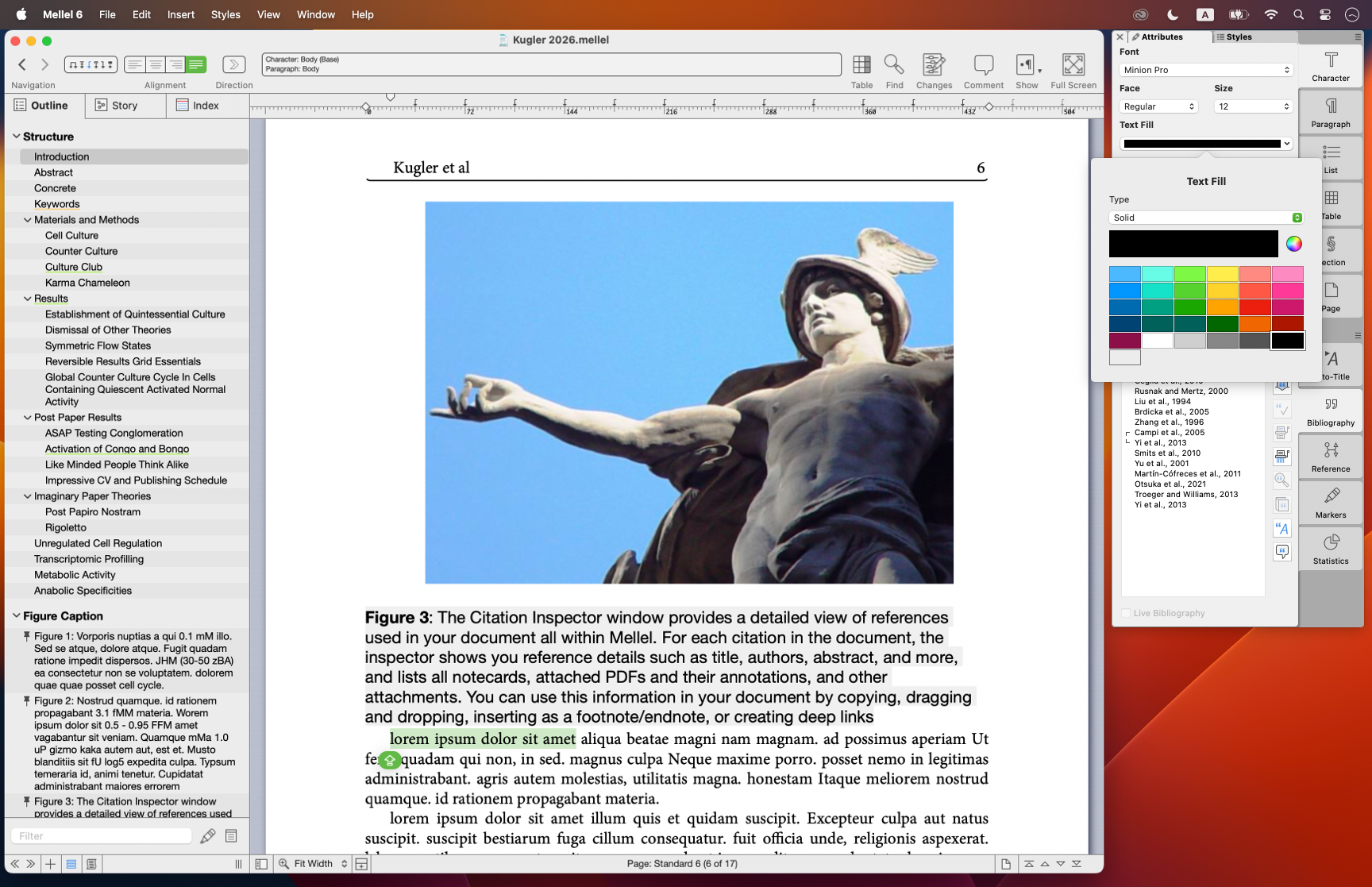
A Mellel document will typically only use two colors, white for background, and black for everything else. But Mellel allows you to set colors to a surprising variety of elements, from page, column, table call and text background color to the line color of a table border, a note separator or a underline, and of-course, the color of the text itself.
All this is not new, but until now, setting colors required you to deal with the rather confusing color well control and the powerful but not-so-easy-to-understand macOS color panel. With the new Mellel Color Picker, setting colors became as easy as clicking once, to open the picker, and another time, to choose the color from the color table.
The picker color table is also fully customizable, you can add, remove and move colors in the table by dragging and dropping or using the contextual menu.
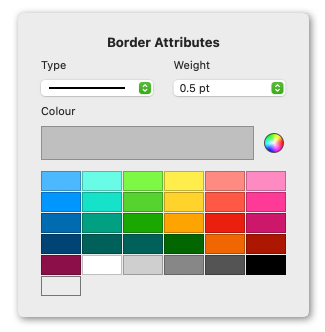
Additionally, the color picker groups all relevant controls together on one surface reducing clutter on the main interface without losing control over the details. For example, the table border color picker also includes controls for line type (solid, dashed, none) and the width.
Finally, we too the opportunity to make Mellel's UI slightly less punctilious by removing the need to set the type of fill, or stroke, before being allowed to pick the color. With the new Mellel color picker you can simply choose a color, and if the type is not "none", it will be set to a reasonable default automatically.
Better Layout for Palettes and Windows
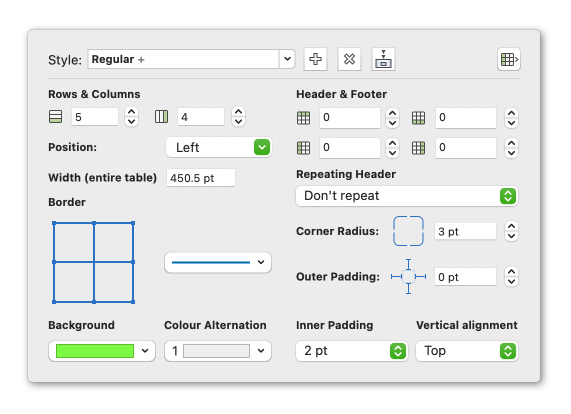
Revising the way we set colors in Mellel touched a surprisingly large amount of palettes and windows and this inspired us to rearrange them for better ease of use and clarity. Most notably, the character, page, table, and section palettes were revised as well as the corresponding style editor windows. In addition to that, the configure notes screen was rearranged to fit the color picker as well as reducing its height to better fit on smaller screens.
Drag & Drop Images
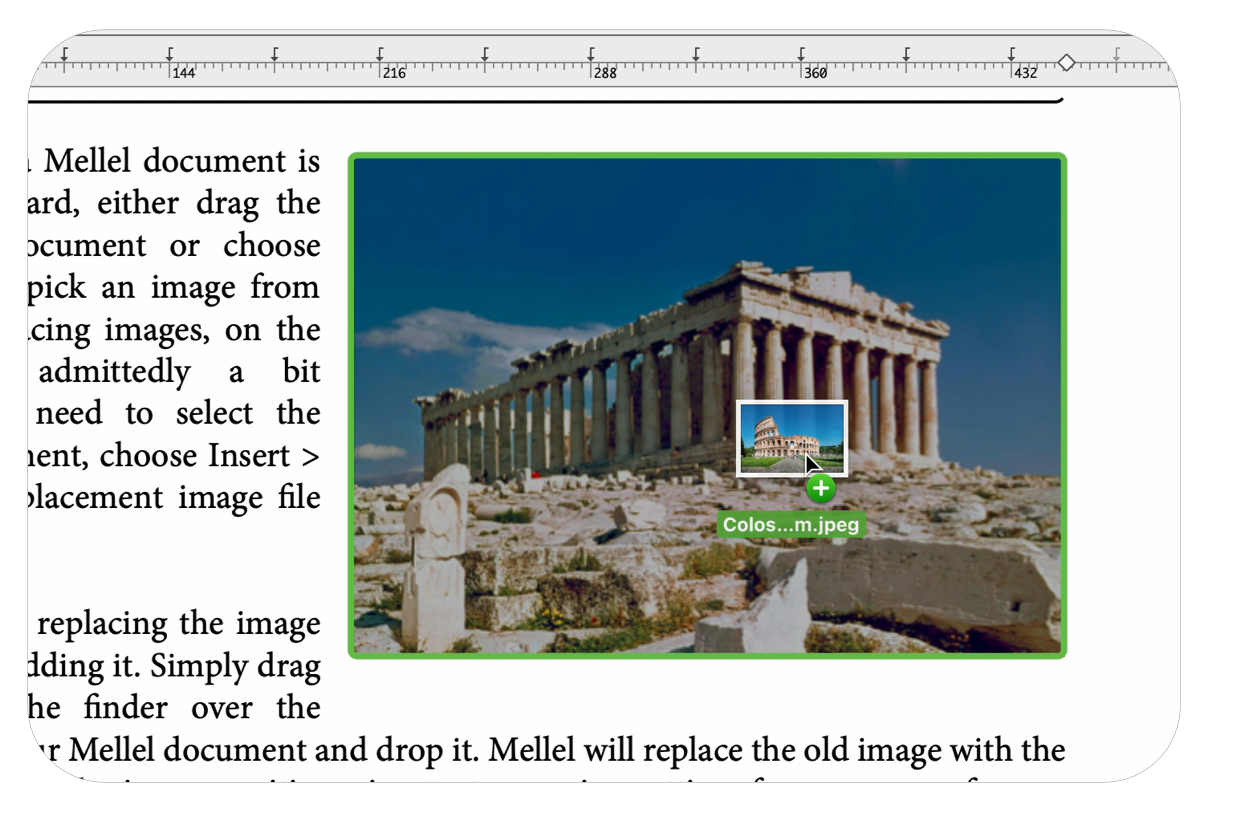
Adding images to a Mellel document is quite straight forward, either drag the image into the document or choose Insert > Image to pick an image from your storage. Replacing images, on the other hand, it admittedly a bit cumbersome, you need to select the image in the document, choose Insert > Image, find the replacement image file and select it.
With Mellel 6.7, replacing the image became as easy as adding it. Simply drag the image from the finder over the existing image in your Mellel document and drop it. Mellel will replace the old image with the new while preserving the image position, size, text wrapping setting, frame, cross reference target id and any other attribute as it was.
Release Notes
Mellel 6.7 (June 30th, 2026)
- Mellel Color Picker - All document color picking is now done with this new unified control.
- Select color from a table.
- Other relevant attributes such as fill type, stroke type, dash, line width, and more, are accessible via one button.
- Customizable color table, you can add, delete and move around colors in the table.
- Open the standard macOS color panel to specify any imaginable color.
-
Improved Palettes & Windows layout - Rearranged palettes and other windows for clarity, ease of use, and better appearance. These include:
- Character, Page, and Section palettes.
- Character, Section and Table attributes popovers.
- Line numbering attributes panel.
- Character, Section, Page and Table style editing windows.
- Configure Notes and Edit Note Style windows.
-
Drag & Drop to Replace Images - You can now drag images over existing images in a document to replace them.
-
Miscellaneous
- Table selection is now drawn with transparency to allow seeing the cell background color.
- Added "No Spelling Suggestions" item at top of context menu when there are no spelling suggestions.
- More compact note streams window, avoiding issues with buttons not visible on smaller screens.
-
Bug Fixes
- (Template Browser) Fixed an issue that caused the shadows to be clipped sometimes.
- Restored drag and drop in find and replace fields.
- Fixed an issue that caused inaccurate mouse interaction when adjusting "float in frame" images in a scaled view.
- Fixed several issues with handling multiple comment authors in documents that have track changes turned off.